How to Create a Paystub: Complete Step-by-Step Guide 2026
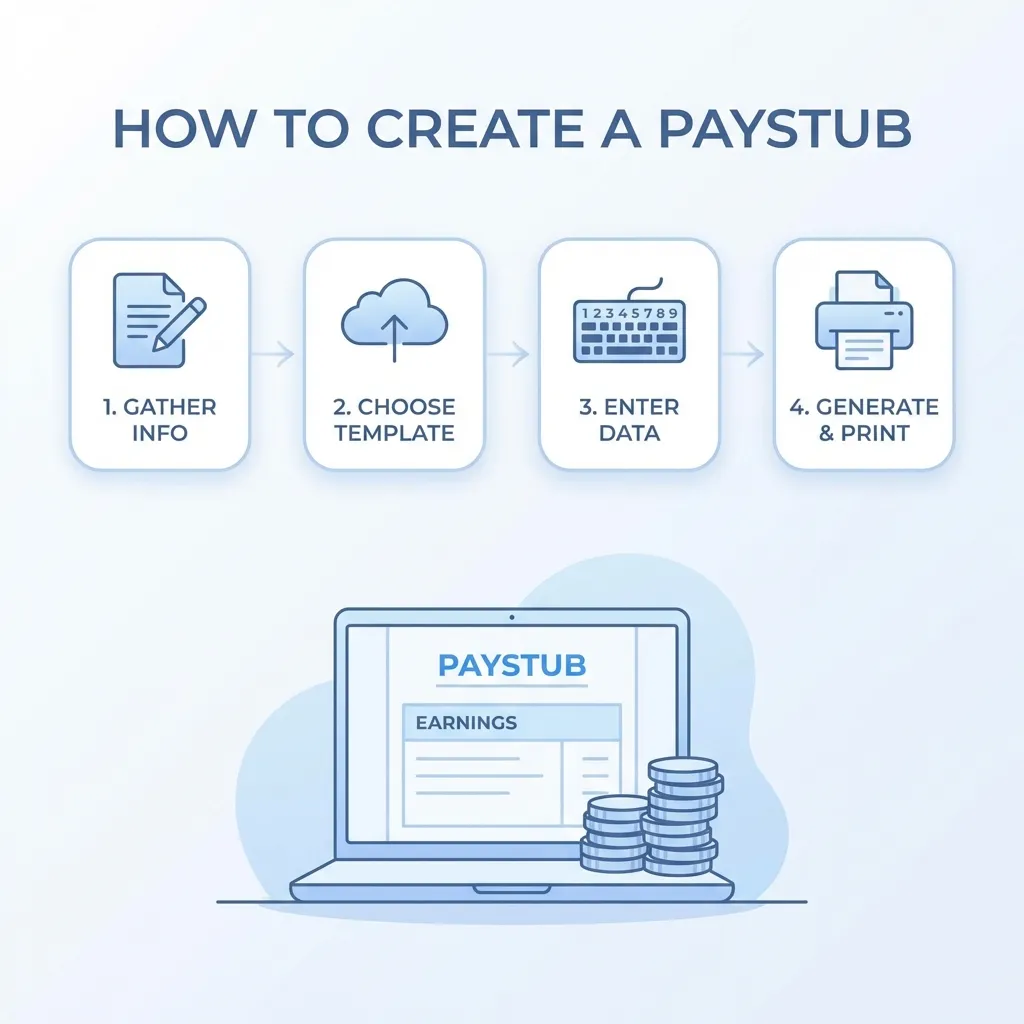
How to Create a Paystub: Complete Step-by-Step Guide 2026
Learning how to create a paystub is essential for millions of Americans who don't receive traditional paychecks. Whether you're self-employed, a freelancer, a contractor, or a small business owner, you need professional pay documentation for apartments, loans, mortgages, and tax preparation.
But creating a paystub doesn't have to be complicated. With the right tools and knowledge, you can create a paystub that looks professional, calculates taxes accurately, and is accepted by landlords, lenders, and tax authorities.
This comprehensive guide will walk you through every step of creating a paystub, from gathering information to downloading your final document. By the end, you'll know exactly how to create paystubs that meet professional standards.
Why You Need to Know How to Create a Paystub
Before we dive into the step-by-step process, let's understand why learning how to create a paystub is so important:
Common Situations Requiring Paystubs
-
Apartment Rental Applications
- Landlords require 2-3 months of paystubs
- Proof of steady income is mandatory
- Professional appearance matters
-
Car Loan Applications
- Dealerships need income verification
- Lenders calculate debt-to-income ratios
- Multiple paystubs show stability
-
Mortgage Pre-Approval
- Lenders are strict with self-employed applicants
- 2-3 months minimum required
- YTD totals must match tax returns
-
Tax Preparation
- Verify income for tax filing
- Recover lost paystubs
- Document business income
-
Government Benefits
- Some programs require proof of income
- Professional documentation needed
- Accurate records essential
What You'll Need Before Creating a Paystub
Before you start creating a paystub, gather this information:
Employer/Business Information
- Company Name: Legal business name or your name if sole proprietor
- Business Address: Street address, city, state, ZIP code
- Business Type: LLC, S-Corp, Sole Proprietorship, etc.
- EIN (optional): Employer Identification Number if you have one
Employee Information (You)
- Full Legal Name: As it appears on your ID
- Home Address: Current mailing address
- Social Security Number: Last 4 digits (for paystub)
- Employee ID (optional): If you use employee IDs
Pay Information
- Gross Pay Amount: Total earnings before taxes
- Pay Period Dates: Start and end dates
- Pay Date: When payment was/will be made
- Pay Frequency: Weekly, biweekly, monthly, etc.
- Payment Type: Hourly rate or annual salary
Tax Information
- Filing Status: Single, married, head of household
- State of Residence: For state tax calculation
- Allowances (if applicable): For federal tax withholding
- Additional Withholdings (optional): Extra tax withholding
Step-by-Step: How to Create a Paystub
Step 1: Choose Your Paystub Creation Method
You have three main options for creating a paystub:
Option A: Online Paystub Generator (Recommended)
Advantages:
- ✅ Automatic tax calculations
- ✅ Professional templates
- ✅ Fast (2-3 minutes)
- ✅ Error-free math
- ✅ IRS-compliant
Best for: Most users, especially those who need accuracy and speed.
Option B: Excel/Spreadsheet Templates
Advantages:
- ✅ Free (if you have Excel)
- ✅ Customizable
Disadvantages:
- ❌ Manual tax calculations
- ❌ Time-consuming (30+ minutes)
- ❌ Error-prone
- ❌ Doesn't look professional
Best for: Users comfortable with spreadsheets who don't mind manual work.
Option C: Payroll Software
Advantages:
- ✅ Comprehensive payroll features
- ✅ Employee management
Disadvantages:
- ❌ Expensive ($20-50/month)
- ❌ Complex setup
- ❌ Overkill for single paystubs
Best for: Businesses with multiple employees.
For this guide, we'll focus on using an online paystub generator - the fastest and most accurate method.
Step 2: Access the Paystub Generator
Navigate to a professional paystub generator. Look for:
- No credit card required to start
- Automatic tax calculations
- Professional templates
- All 50 states supported
What to Avoid:
- Generators that require subscriptions upfront
- Tools with hidden fees
- Generators without tax calculations
- Basic templates that look unprofessional
Step 3: Enter Employer/Business Information
This section identifies who is paying you (your business).
Company Name:
- Use your legal business name
- If sole proprietor, use your full legal name
- Be consistent across all paystubs
Example:
Company Name: Smith Consulting LLC
Business Address:
- Use your registered business address
- Or your home address if you work from home
- Must be a real, verifiable address
Example:
Address: 123 Business Park Drive
City: Austin
State: Texas
ZIP: 78701
Important Notes:
- Use the same address format across all paystubs
- Ensure the address is consistent with your business records
- If you have multiple locations, use your primary business address
Step 4: Enter Employee Information
This section is about you as the employee.
Full Legal Name:
- Use your name exactly as it appears on your ID
- Include middle initial if you typically use it
- Be consistent across all documents
Example:
Employee Name: John A. Smith
Home Address:
- Your current mailing address
- Should match addresses on other documents
- Use if different from business address
Social Security Number:
- Most paystubs show only the last 4 digits
- Format: XXXX (e.g., 1234)
- Never share your full SSN unless required
Employee ID (Optional):
- Some businesses use employee IDs
- Format: EMP-001, 12345, etc.
- Leave blank if you don't have one
Step 5: Configure Pay Details
This is the most important step - getting your pay information correct.
Option A: Hourly Workers
If you're paid by the hour:
Hourly Rate:
- Enter your hourly wage
- Example: $25.00/hour, $45.50/hour
Hours Worked:
- Regular hours in the pay period
- Example: 80 hours (for 2 weeks)
Overtime Hours (if applicable):
- Hours over 40 per week
- Typically paid at 1.5x rate
- Example: 5 overtime hours
Calculation:
Regular Pay = Hourly Rate × Regular Hours
Overtime Pay = (Hourly Rate × 1.5) × Overtime Hours
Gross Pay = Regular Pay + Overtime Pay
Example:
- Hourly Rate: $25.00
- Regular Hours: 80
- Overtime Hours: 5
- Regular Pay: $25.00 × 80 = $2,000
- Overtime Pay: ($25.00 × 1.5) × 5 = $187.50
- Gross Pay: $2,187.50
Option B: Salaried Workers
If you're paid a salary:
Annual Salary:
- Your total yearly income
- Example: $60,000/year, $75,000/year
Pay Frequency:
- How often you're paid
- Options: Weekly, Bi-weekly, Semi-monthly, Monthly
Automatic Calculation:
| Frequency | Pay Periods/Year | Calculation |
|---|---|---|
| Weekly | 52 | Annual ÷ 52 |
| Bi-weekly | 26 | Annual ÷ 26 |
| Semi-monthly | 24 | Annual ÷ 24 |
| Monthly | 12 | Annual ÷ 12 |
Example:
- Annual Salary: $60,000
- Pay Frequency: Bi-weekly
- Gross Pay per Period: $60,000 ÷ 26 = $2,307.69
Option C: Contract/Project-Based
If you're paid per project or contract:
Gross Pay Amount:
- Total amount for the pay period
- Example: $3,500 for a completed project
Payment Type:
- Select "Contract" or "Other"
- Enter the gross amount directly
Step 6: Set Pay Period Information
The pay period defines the timeframe you're being paid for.
Pay Period Start Date:
- First day of the work period
- Example: 01/01/2026
Pay Period End Date:
- Last day of the work period
- Example: 01/14/2026 (for bi-weekly)
Pay Date:
- Date the payment is issued
- Should be after the pay period end
- Example: 01/17/2026
Pay Frequency:
- How often you're paid
- Must match your actual pay schedule
Common Pay Frequencies:
| Frequency | Period Length | Typical Pay Dates |
|---|---|---|
| Weekly | 7 days | Every Friday |
| Bi-weekly | 14 days | Every other Friday |
| Semi-monthly | ~15 days | 1st and 15th |
| Monthly | ~30 days | Last day of month |
Important:
- Pay date should always be after pay period end
- Be consistent with dates across multiple paystubs
- Use actual calendar dates, not approximations
Step 7: Select Your State
State selection is critical - it determines your tax calculations.
Why State Matters:
- State income tax rates vary significantly
- Some states have no income tax
- Local taxes may apply
- Special deductions (like California SDI)
States with No Income Tax:
- Texas
- Florida
- Nevada
- Washington
- Wyoming
- South Dakota
- Tennessee
- New Hampshire (wages only)
States with High Income Tax:
- California: Up to 13.3% (plus SDI)
- New York: Up to 10.9% (plus local taxes)
- New Jersey: Up to 10.75%
- Oregon: Up to 9.9%
What Happens Automatically: Once you select your state, the generator automatically:
- Applies the correct state income tax rate
- Calculates local taxes (where applicable)
- Applies special deductions (SDI, etc.)
- Ensures compliance with state requirements
Step 8: Configure Tax Settings
While the generator calculates taxes automatically, you can configure:
Filing Status:
- Single
- Married Filing Jointly
- Married Filing Separately
- Head of Household
Why It Matters:
- Affects federal tax brackets
- Different standard deductions
- Impacts tax withholding amount
Allowances (if applicable):
- Number of allowances on your W-4
- More allowances = less tax withheld
- Typically 0-3 for most people
Additional Withholdings (optional):
- Extra tax you want withheld
- Useful if you owe taxes at year-end
- Enter as dollar amount per pay period
Step 9: Review Automatic Tax Calculations
Once you've entered all information, the generator automatically calculates:
Federal Income Tax
Based on 2026 IRS tax brackets:
| Income Range (Single) | Tax Rate |
|---|---|
| $0 - $11,600 | 10% |
| $11,601 - $47,150 | 12% |
| $47,151 - $100,525 | 22% |
| $100,526 - $191,950 | 24% |
| $191,951 - $243,725 | 32% |
| $243,726 - $609,350 | 35% |
| Over $609,350 | 37% |
Example Calculation:
- Gross Pay: $3,000 (bi-weekly)
- Annual Equivalent: $78,000
- Tax Bracket: 22%
- Estimated Federal Tax: ~$500 per period
Social Security (FICA-SS)
- Rate: 6.2% of gross pay
- 2026 Limit: $168,600
- After limit, no more Social Security tax
Example:
- Gross Pay: $3,000
- Social Security: $3,000 × 6.2% = $186.00
Medicare (FICA-Med)
- Rate: 1.45% of gross pay
- No income limit
- Additional 0.9% on income over $200,000
Example:
- Gross Pay: $3,000
- Medicare: $3,000 × 1.45% = $43.50
State Income Tax
Varies by state. Examples:
| State | Rate | Example ($3,000 gross) |
|---|---|---|
| California | 1% - 13.3% | ~$150 - $400 |
| Texas | 0% | $0 |
| New York | 4% - 10.9% | ~$120 - $327 |
| Florida | 0% | $0 |
What to Check:
- Federal tax seems reasonable for your income level
- State tax matches your state's rate
- FICA taxes are correct (6.2% + 1.45% = 7.65% total)
- Net pay makes sense after all deductions
Step 10: Add Year-to-Date (YTD) Information
If this isn't your first paystub of the year, you'll need YTD totals.
YTD Gross Pay:
- Total gross pay from January 1 to current period
- Should be cumulative
YTD Deductions:
- Total federal tax year-to-date
- Total state tax year-to-date
- Total FICA year-to-date
- Total other deductions
YTD Net Pay:
- Total take-home pay year-to-date
Example: If this is your 10th paystub of the year:
- Current Gross: $3,000
- YTD Gross: $30,000 (10 × $3,000)
- YTD Federal Tax: ~$5,000
- YTD Net Pay: ~$22,000
Important:
- YTD totals must be cumulative
- Each paystub builds on the previous
- Final YTD should match your annual income
Step 11: Preview Your Paystub
Before downloading, review your paystub preview carefully.
Check These Elements:
-
Personal Information
- ✅ Name is spelled correctly
- ✅ Address is accurate
- ✅ SSN (last 4) is correct
-
Employer Information
- ✅ Company name is correct
- ✅ Business address is accurate
- ✅ All details match your records
-
Pay Information
- ✅ Gross pay is correct
- ✅ Pay period dates are accurate
- ✅ Pay date is after period end
-
Tax Calculations
- ✅ Federal tax seems reasonable
- ✅ State tax matches your state
- ✅ FICA taxes are correct (7.65% total)
- ✅ Net pay makes sense
-
YTD Totals
- ✅ YTD gross is cumulative
- ✅ YTD deductions are accurate
- ✅ YTD net pay is correct
-
Formatting
- ✅ Looks professional
- ✅ All sections are complete
- ✅ Numbers are formatted correctly
Common Issues to Watch For:
- Typos in names or addresses
- Incorrect pay amounts
- Wrong pay period dates
- Tax calculations that seem off
- YTD totals that don't add up
Step 12: Make Corrections (If Needed)
If you notice any errors:
- Don't download yet - corrections are easier before final generation
- Go back to the relevant section - edit the incorrect information
- Regenerate the preview - check that corrections are applied
- Review again - ensure everything is now correct
Most generators allow:
- Unlimited previews
- Free corrections
- Easy editing of all fields
Step 13: Download Your Final Paystub
Once everything is correct:
- Click "Download" or "Generate PDF"
- Complete payment (if required - usually only for watermark removal)
- Save the PDF to a secure location
- Backup the file - keep multiple copies
File Naming Tip: Use a clear naming convention:
Paystub_2026-01-17_JohnSmith.pdf
This makes it easy to find specific paystubs later.
Creating Multiple Paystubs
If you need multiple paystubs (e.g., for the last 3 months):
Step 1: Create the First Paystub
Follow all steps above for your most recent pay period.
Step 2: Note the YTD Totals
Write down the YTD totals from your first paystub:
- YTD Gross Pay
- YTD Federal Tax
- YTD State Tax
- YTD FICA
- YTD Net Pay
Step 3: Create the Second Paystub
For the previous pay period:
- Use the same employer/employee info
- Enter the previous pay period dates
- Enter the previous gross pay amount
- Subtract current period amounts from YTD to get new YTD totals
Example:
- First Paystub YTD Gross: $30,000
- First Paystub Gross: $3,000
- Second Paystub YTD Gross: $30,000 - $3,000 = $27,000
Step 4: Repeat for Additional Paystubs
Continue working backwards, ensuring:
- YTD totals are cumulative
- Each paystub builds on the previous
- Dates are consecutive
- Gross pay amounts are consistent
Tips for Creating Professional Paystubs
Tip 1: Be Consistent
Across all paystubs:
- Use the same company name format
- Use the same address format
- Use consistent pay amounts (unless income varies)
- Use the same template/style
Tip 2: Match Your Bank Deposits
The net pay on your paystub should match:
- Actual bank deposits
- Your financial records
- Other documentation
Discrepancies can raise red flags during verification.
Tip 3: Use Accurate Information
Always ensure:
- All amounts are truthful
- Dates are accurate
- Tax calculations are correct
- Information matches your records
Remember: Creating paystubs with false information is fraud.
Tip 4: Keep Records
After creating paystubs:
- Save PDFs in organized folders
- Keep a spreadsheet of pay periods
- Note YTD totals for future reference
- Backup files securely
Tip 5: Review Before Using
Before submitting paystubs:
- Double-check all information
- Verify calculations
- Ensure formatting looks professional
- Confirm dates are correct
Common Mistakes to Avoid
Mistake 1: Incorrect Tax Calculations
Problem: Manual tax calculations are error-prone.
Solution: Use a generator with automatic tax calculations.
Mistake 2: Inconsistent YTD Totals
Problem: YTD totals don't add up across multiple paystubs.
Solution: Work backwards from most recent paystub, ensuring cumulative totals.
Mistake 3: Wrong Pay Period Dates
Problem: Pay dates before pay period end dates.
Solution: Always ensure pay date is after pay period end.
Mistake 4: Unprofessional Formatting
Problem: Paystubs look homemade or unprofessional.
Solution: Use professional templates from reputable generators.
Mistake 5: Missing Information
Problem: Incomplete paystubs missing required information.
Solution: Use a comprehensive generator that includes all standard sections.
Frequently Asked Questions
How long does it take to create a paystub?
With an online generator, most users complete the process in 2-3 minutes. The actual generation happens in under 60 seconds.
Do I need special software?
No! Online paystub generators work through your web browser. No software installation required.
Can I create paystubs for past dates?
Yes! Most generators allow you to create paystubs for any date - past or present. Perfect for recovering lost paystubs.
What if I make a mistake?
Most generators allow unlimited previews and free corrections. Simply edit the incorrect information and regenerate.
Will my paystub be accepted?
Yes, as long as the information is accurate. Professional paystubs from reputable generators use industry-standard formatting that matches what major payroll providers use.
Do I need a business license?
No. You don't need any special license to create paystubs for yourself or your business.
Can I create multiple paystubs?
Yes! You can create as many paystubs as you need. Just ensure YTD totals are cumulative across multiple paystubs.
What information do I need?
You'll need: business name/address, your personal information, gross pay amount, pay period dates, and your state for tax calculations.
Are tax calculations accurate?
Yes, if you use a reputable generator with up-to-date tax rates. Our generator uses the latest 2026 IRS brackets and state-specific rates.
How much does it cost?
Many generators offer free previews. You typically only pay when you download the final, watermark-free PDF (usually $5-15 per paystub).
Conclusion: You Now Know How to Create a Paystub
Creating a professional paystub doesn't have to be complicated. By following this step-by-step guide, you can:
- ✅ Create paystubs in minutes
- ✅ Ensure accurate tax calculations
- ✅ Generate professional-looking documents
- ✅ Meet requirements for landlords, lenders, and tax authorities
Key Takeaways:
- Gather information first - Have all details ready before starting
- Use an online generator - Fastest and most accurate method
- Double-check everything - Review before downloading
- Be consistent - Use the same format across multiple paystubs
- Keep records - Save all paystubs for future reference
Whether you need paystubs for an apartment, loan, mortgage, or tax preparation, you now have the knowledge to create professional paystubs that meet all requirements.
No credit card required to start. Generate professional paystubs in minutes.
Need more help? Check out our guides on what a paystub is, how to read a paystub, or creating paystubs for specific situations.
Sources & References

About ValidPaystubs Editorial Team
Articles on ValidPaystubs are written and maintained by the editorial team at Sweethelp LLC, the company that operates this site from Sheridan, WY. We are a small team, not a firm of accountants — we build the tool and document how US payroll figures work, citing the IRS and state revenue departments so you can check any number against its source. Nothing here is tax, legal or financial advice, and for a decision that matters you should talk to a licensed professional.
View Profile